2019年2月26日星期二

How to Fix iPhone Wi-Fi not Working – 3 Ways


How to Fix iPhone Wi-Fi not Working – 3 Ways

There are several methods of fixing iPhone Wi-Fi not working, but we shall be looking at five distinct methods: reset Wi-Fi network, reset Wi-Fi network’s router, and completely reset iPhone, update iOS to latest version, and put iPhone in DFU mode and restore with iTunes.
#1. Reset Wi-Fi Network

Wiping out Wi-Fi network settings is a good way to restore your iPhone Wi-Fi to its default settings. This can be done using iTunes, but I would prefer if we head straight to iPhone Settings and get done with it.

Here are the necessary steps:


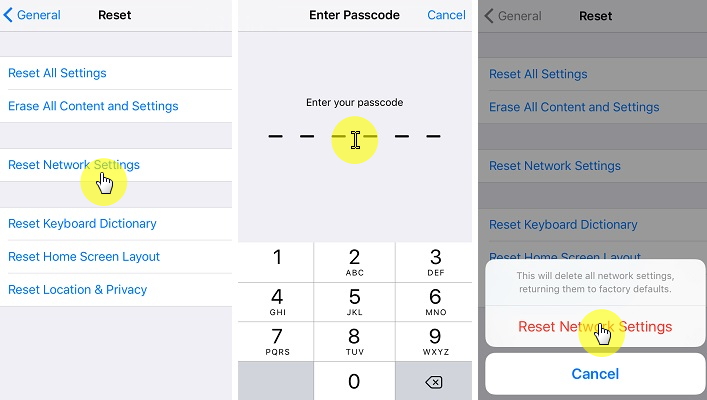
Step 1: Click Settings > General > Reset.


Step 2: Click Reset Network Settings.

At this point, your iPhone will erase all the Wi-Fi networks it has connected to before now. Search for available Wi-Fi networks and try connecting to one.

#2. Reset Wi-Fi Network’s Router

iPhone Wi-Fi not working isn’t always a pointer to bad iPhone network settings; the problem may be coming from the Wi-Fi network router. A hard reset is the best way to correct such problems especially when the administrator has forgotten the router password.

Once the software on the router is reset to factory default, all customizations such as passwords, ports, forwarding, security keys, and custom DNS servers will be erased.

Here are the steps to perform a hard reset:


Step 1: Turn on the router if it’s off.


Step 2: Search for the router’s reset button.


Step 3: Use a paperclip to hold down the reset button for 30 seconds.


Step 4: Wait for another 30 seconds for the router to fully reset, then turn it on.


If this process of resetting Wi-Fi router doesn’t work for you, then check your manufacturer’s guide to know if they have a unique way to reset their router.Sponsor ads:

send anonymous text message from computer for free

Must Read:If you lost data after you updated to a new iPhone, you can always use Gihosoft iPhone Data Recovery to get the data back from the old iPhone or backup.

Gihosoft Free iPhone Data Recovery:iphonerecovery.comIf you use android phones, please choose Gihosoft Android Data Recovery
#3. Update iOS to Latest Version

Updating your iOS to its latest version can be a good way to solve iPhone Wi-Fi not working and other iOS related issues. Here is an easy way to install iOS 11.2.1 using Software Update on your iPhone or iPad:


Step 1: Backup your files on iCloud.


Step 2: Click Settings > General > Software Update.


Step 3: Enter your Apple ID Passcode if prompted.


Step 4: Click Agree on Terms & Conditions, then click Agree again to confirm.


The download will begin automatically, thereafter installations will commence.

Sponsor ads:how to remove cydia
Must Read:If you lost data after you updated to a new iPhone, you can always use Gihosoft iPhone Data Recovery to get the data back from the old iPhone or backup.

Gihosoft Free iPhone Data Recovery:iphonerecovery.com

If you use android phones, please choose Gihosoft Android Data Recovery

Transfer Files from iPhone to PC


1. Transfer Files from iPhone to PC with Aiseesoft FoneTrans

With FoneTrans, you no longer have to depend on iTunes for transferring your files to your computer and managing your files. It also allows you to transfer items between iDevices. Say if you bought a new iPad, for instance, and you want to send some files in there from your iPhone, FoneTrans will let you do that. Here are some of its features:


You can sync your iPhone with your iTunes library without opening iTunes.


One-click transfer between numerous devices is possible and easy.


Exports contacts as well.


Syncing music without internet connection.


3. Transfer Files from iphone to PC with Copytrans

CopyTrans is amazing as an iOS data transfer software. You can bypass all those annoying iTunes limitations with the help of CopyTrans. No matter what kind of file it is that you want to transfer, CopyTrans will do it for you, and you won’t ever need to open your iTunes library. Some of its features are:Gihosoft Free iPhone Data Recovery:iphonerecovery.com


Allows you send your favorite song or selection between devices with no limitations.


Allows one-click backup of files to PC.


No loss of existing songs.


Simple interface.


Gihosoft Free iPhone Data Recovery:iphonerecovery.com

Huge iOS 12 Security Issue: Homekit Allows Hackers to Unlock Users’ Doors Remotely


The new iOS 12 update fixed some unexpectedly reboot issues, but because it was rushed, it appears to have introduced some as well! One such security problem is a flaw in HomeKit that allows unauthorized parties to access controls in your home.
Let's Learn More about the iOS 12 HomeKit Security Issue?

An anonymous source recently discovered a bug of iOS 12 that allows hackers access to a user’s HomeKit app, allowing them to possibly unlock doors remotely. Obviously, this kind of flaw moves beyond the realm of cyber security, as it could potentially be used by thieves to physically enter someone’s house. Taking advantage of a feature that allows users to share access to the house with others, hackers could theoretically gain access to properties.

Luckily, the issue seems difficult to reproduce consistently, and it doesn’t seem to have been exploited yet by actual intruders. Just in case, Apple temporarily disabled the “shared users” function of HomeKit (which was part of the vulnerability), patching up the flaw for the moment. Apple says that they will fix the issue permanently in the coming update. They may have known about the vulnerability as early as October, but it was not publicized until recently.

Since the fix was done server-side, users don’t need to do anything and there is no need to update any software. The patch is automatic—though users will lose the ability to share access to HomeKit with other users until the final patch comes out.

This is one of a few issues with iOS 12, a new update that was rushed into release—ironically to address some serious security and functionality issues with the update before this.


What Hackers with Malicious Intent Can Do

In this particular security breach, naturally a hacker working with a real-life thief could conspire to get inside your house and rob you. There is no evidence that this has happened yet—but it does expose some of the flaws of HomeKit in general. Could it be subject to other security breaches in the future?

Nowadays, with mobile phones more connected than ever, hackers can violate your privacy in many ways. They can:Also Read:Top 8 iOS Emulators To Run iOS Apps On Windows PC & Laptop in 2019


Harvest personal data to sell or leak on the Internet, and sometimes they can even collect financial data to sell to criminals.


Phish information from you by spoofing a common app that you trust.


Inject malware into apps you use, so that they can steal your passwords.


Use malware to record your keystrokes.


Capture your private data as it travels wirelessly.


Steal company secrets or intellectual property.


Use your device to access a larger network that it is a part of—for example, your company intranet.

This is why it’s important to protect yourself as much as you can. Paying attention to mobile security is a must, or you could find yourself in the midst of one of these common security breaches.
How Can iOS Users Protect Their Privacy from Hacking Attacks

Though nothing is foolproof, you can take steps to protect yourself from hackers and malicious software. Here are some of the ways that you can keep your mobile device as safe as possible:
Tip 1: Erase the Data on Your iPhone


Sponsor ads:

Gihosoft Free iPhone Data Recovery:https://www.gihosoft.com/iphone-data-recovery-free.html

Gihosoft iPhone Data Recovery Free

Free iPhone Data Recovery Software for Windows/Mac

Recover up to 12+ types of files, including contacts, SMS, photos, WhatsApp, Viber, notes, etc.

Restore lost data from iOS devices directly or from iTunes and iCloud backup

Recover iPhone data lost due to iOS upgrade/jailbreak, accidental deletion, device lost or broken

Support all the latest iPhone, iPad and iPod Touch

Both Free and Pro version.

If you lost data after you updated to a new iPhone, you can always use Gihosoft iPhone Data Recovery to get the data back from the old iPhone or backup.You may also like: iphonerecovery.com

If you use android phones, please choose Gihosoft Android Data Recovery.

With Gihosoft Android Data Recovery, no longer afraid of data loss!

Must read:Youtube video downloader for pc

Gihosoft RePicvid Free Photo Recovery Software provides a free photo recovery software for windows to help users recover the deleted or lost photo for free.

Jihosoft Android Data Recovery: the best Android Data Recovery software for Windows and Mac to recover deleted contacts, messages, photos, videos, WhatsApp and etc from Android devices.Tips:How to transfer messages from iPhone to iPhone


jihosoft Free iPhone Data Recovery

Transfer Photos from Mac to iPhone X/8 (Plus)


1. Transfer Photos from Mac to iPhone X/8 (Plus) iTunes

In this first method we are going to show you how to transfer photos from Mac to iPhone using iTunes and while we don’t recommend using iTunes, it’s a viable option.

Step 1. Connect your iPhone X/8/8 Plus using a lightning cable and launch iTunes.

Step 2. After iTunes has loaded, click on the device icon at the upper left corner on iTunes.

Step 3. Then click on “Photos” from the left menu.

Step 4. Check the “Sync Photos” box at the top and choose “Choose folder” behind Copy photos from.Sponsor ads:Setup Dual Monitors in Windows 10 Computer 2019

Step 5. Lastly, click on “Apply” and your albums will be transferred.


Before you do this, you need to put all your photos in the same album on Mac.
Some of the disadvantages to using iTunes are:


Risk of photos being corrupted while transferring.


iTunes can be very buggy to use.


Unable to selectively transfer photos.


Synced photos cannot be deleted from iPhone until you unsync them from iTunes.
2. Transfer Photos from Mac to iPhone X/8 (Plus) without iTunes

Next, if you don’t want to use iTunes, you can also use the iOS Airdrop feature.

Step 1. On your Mac, launch the Airdrop app from Finder. You will be prompted to enable Wi-Fi or Bluetooth.

Step 2. Then you will see all the nearby contacts on which you can transfer photos from Mac to iPhone.

Step 3. To transfer photos to iPhone X/8/8 Plus, you just need to drag the photos and drop them to the respective contact that you wish ti transfer.

Step 4. Once done, you will receive a pop-up message on iPhone x/8/8 Plus “AirDrop: [Device Name] wants to share photos with you.”

Step 5. Click “Accept” to receive the photos.


Cons:


Your iPhone and Mac must be connected to the same Wi-Fi network.


This is only available on Mac computers.

Note

If it’s not really necessary for you, it’s not suggested to transfer photos to iPhone no matter using iTunes, AirDrop or any other third-party apps, because according to unknown reasons, there is a risk that the added photos cannot be deleted from iPhone unless you reset your iPhone.

Reasons for Transferred Photos Cannot be Deleted:


The iTunes that you used to sync photos get broken, that you cannot unsync the photos.


It may be caused by some bugs of Apple’s iOS system.


If you use third-party app, it may be incompatibility between the app and iOS that causes it.
3. Bonus Tips to Manage iPhone Photos on PC/Mac

Sponsor ads:

Gihosoft Free iPhone Data Recovery:https://www.gihosoft.com/iphone-data-recovery-free.html

Gihosoft iPhone Data Recovery Free

Free iPhone Data Recovery Software for Windows/Mac

Recover up to 12+ types of files, including contacts, SMS, photos, WhatsApp, Viber, notes, etc.

Restore lost data from iOS devices directly or from iTunes and iCloud backup

Recover iPhone data lost due to iOS upgrade/jailbreak, accidental deletion, device lost or broken

Support all the latest iPhone, iPad and iPod Touch

Both Free and Pro version.

If you lost data after you updated to a new iPhone, you can always use Gihosoft iPhone Data Recovery to get the data back from the old iPhone or backup.You may also like: iphonerecovery.com

If you use android phones, please choose Gihosoft Android Data Recovery.

With Gihosoft Android Data Recovery, no longer afraid of data loss!

Must read:Youtube video downloader for pc

Gihosoft RePicvid Free Photo Recovery Software provides a free photo recovery software for windows to help users recover the deleted or lost photo for free.

Jihosoft Android Data Recovery: the best Android Data Recovery software for Windows and Mac to recover deleted contacts, messages, photos, videos, WhatsApp and etc from Android devices.Tips:How to transfer messages from iPhone to iPhone


jihosoft Free iPhone Data Recovery

Transfer Music From Old iPhone to iPhone X/8 2019


1 Transfer Music From Old iPhone To iPhone X/8 via iTunes Home Sharing

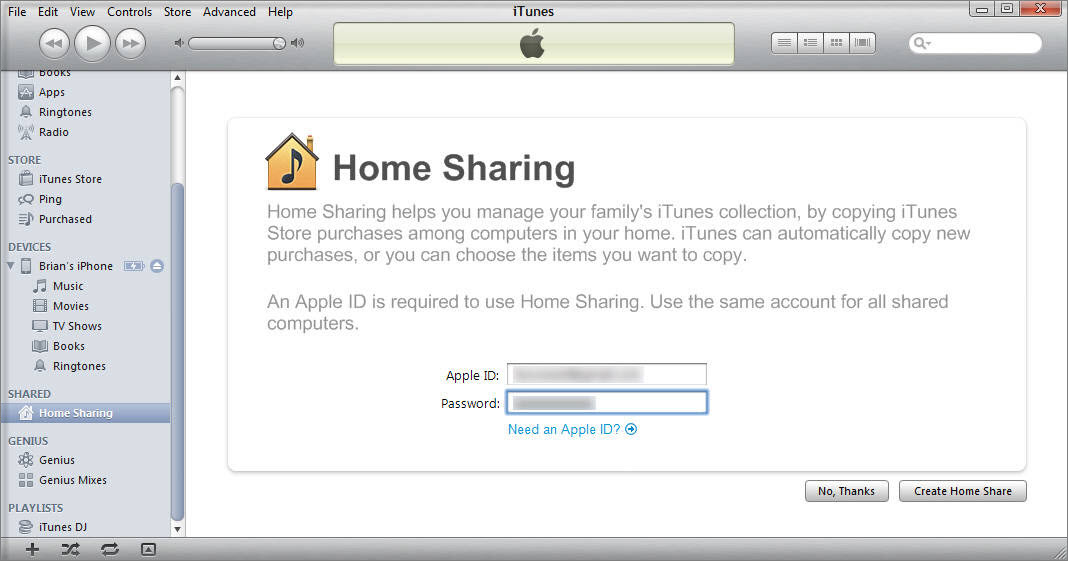
Step 1: Go to Settings > Music with the iPhone that has the music on it.

Step 2: Find Home Sharing by scrolling down.

Step 3: Enter your Apple ID and Password.Sponsor ads:how to remove cydia

Step 4: Repeat steps 1,2,3,4 on the iPhone you want to transfer the music to.

Step 5: Open the music app on the iPhone you want to send music to.

Step 6: If you use Apple Music, go to “My Music” and then “Songs” or “Albums” and choose Home sharing. if you do not use Apple Music, select More>Shared and select the library you want to listen to.


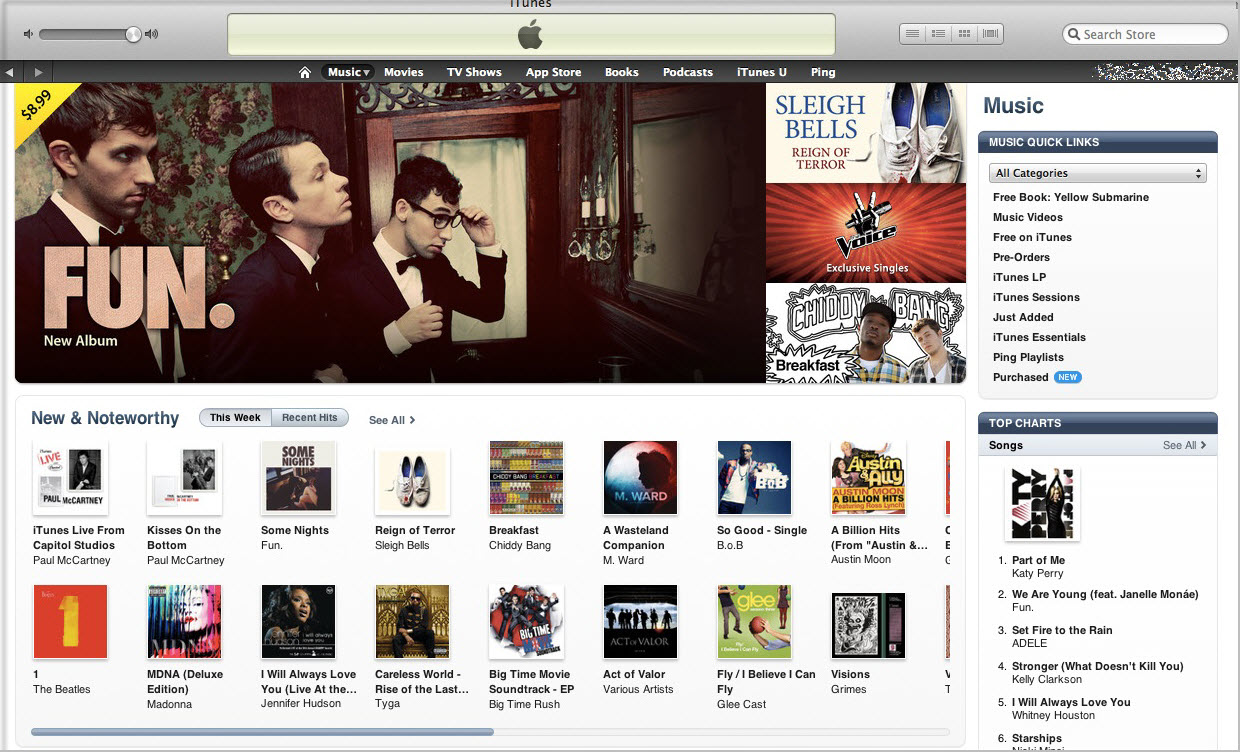
3 Transfer Music From Old iPhone to iPhone X/8 via iTunes Store

Step 1: Launch the iTunes Store Application.

Step 2: Select More > Purchased.

Step 3: Select Purchased > Music.

Step 4: Select All Songs.

Step 5: Select Download All songs.


Download speed will depend on your internet connection and number of music to be downloaded.
4 Transfer Music From Old iPhone to iPhone X/8 via AirDrop

Step 1: Ensure that both devices are connected to Wi-Fi and have their Bluetooth turned on.

Step 2: On the target device: On iOS 10 and below; go to control center and select “AirDrop” on iOS 11 and above go to control center, press and hold the top left module and select “AirDrop”.

Step 3: Select either “Contacts Only or “Everyone” to enable “AirDrop”.

Step 4: On the source device, go to Apple Music and select the Music/Album to Transfer.

Step 5: Select the “…” symbol and tap on “Share Song/Album”.

Step 6: Select the icon for the target iPhone and wait for permission.

Step 7: Select “Accept” on the target iPhone to receive the song via AirDrop.


5 Transfer Music From Old iPhone to iPhone X/8 via Family Sharing

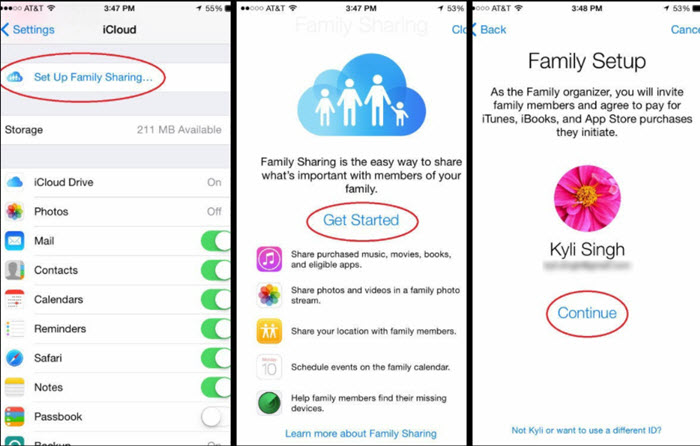
Step 1: Navigate to Settings > iCloud > Set up Family Sharing> Get Started > Continue on your device to activate Family Sharing. a credit or debit card is needed.

Step 2: As the organizer of the Family Share Plan, you will set up and be responsible for the payment of purchases of other members in the future.

Step 3: Select the “Add Family Member” option to add a family member to your group, you can add up to 5 people.

Step 4: Once you have configured Family Sharing, every member of the group can have access to each other’s music, TV shows, Apps, movies, books and so on. Go to iTunes Store > More > Purchased. You can choose a family member to download any song you wish from them.


You may also like:
Sponsor ads:How to Enter/Exit iPhone Recovery Mode & DFU Mode (iOS 12 or iPhone Xs/X/8/7/6)

how to find wifi password on iphone
Must Read:If you lost data after you updated to a new iPhone, you can always use Gihosoft iPhone Data Recovery to get the data back from the old iPhone or backup.

Gihosoft Free iPhone Data Recovery:iphonerecovery.com

If you use android phones, please choose Gihosoft Android Data Recovery

Sponsor ads:emoji font 3 apk


Sponsor ads:Use Remote Desktop Connection in Windows 10

Download iCloud Photos to iPhone 8/X 2019


1 Download iCloud Photos to iPhone 8/X with iCloud Photo Library

iCloud Photo Library is a great service from Apple that allows iDevice users to save space. You can view your photos on the cloud and also download them if needed. Downloading photos using iCloud Photo Library is quite easy because you will only need to use your iPhone and access to the internet for the procedure.

Follow these steps to download iCloud photos to iPhone 8/X:

Step 1: First, make sure your iCloud Photo Library is ON in your iPhone 8/X. If not, then you can do this by launching Settings app and then navigating to Photos option available in iCloud section and setting the iCloud Photo Library to ON status.


Step 2: There, you will also see an option called ‘Download and Keep Originals’. Use this option to download your photos.

Step 3: Downloaded photos will become available in Photos app, you can view them in your Photo Library.
2 Download iCloud Photos to iPhone 8/X from iCloud.com

It is also possible to download your iCloud photos to iPhone 8/X without using iCloud Photo Library. You can do this by using either your Windows PC or Mac.

Follow these steps to download your photos from icloud.com:

Step 1: Visit www.icloud.com in your computer’s web browser and log in using your Apple ID. Use the same ID that you use to log in to iCloud Photo Library.

Step 2: Once you are logged in, you will see several tabs on the webpage. Click on Photos tab to browse your iCloud photo gallery.


Step 3: From the photos gallery, you can select your desired photos and then click Download button to start downloading the images. Your selected photos will be downloaded on your computer’s hard disk.

Step 4: If you want to retrieve the photos you accidentally deleted, then navigate to Albums page in Photos section and then choose Recently deleted folder. There, you will be able to view your deleted photos. Select the photos you wish to recover and then click Recover to download them to your computer.Sponsor ads:Check Who Viewed Your Facebook Profile?
Sponsor ads:Find Songs by Humming Online with Web/Mobile Apps

Step 5: Once downloaded, you can transfer the photos to your iPhone 8/X via iTunes.
How to Export Photos from iPhone 8/X to Computer
Sponsor ads:How to Fix “The action can’t be completed because…”

Gihosoft Free iPhone Data Recovery:iphonerecovery.com

If you use android phones, please choose Gihosoft Android Data Recovery
Sponsor ads:
Gihosoft iPhone Data Recovery Free
Free iPhone Data Recovery Software for Windows/Mac
Recover up to 12+ types of files, including contacts, SMS, photos, WhatsApp, Viber, notes, etc.
Restore lost data from iOS devices directly or from iTunes and iCloud backup
Recover iPhone data lost due to iOS upgrade/jailbreak, accidental deletion, device lost or broken
Support all the latest iPhone, iPad and iPod Touch
Both Free and Pro version.
If you lost data after you updated to a new iPhone, you can always use Gihosoft iPhone Data Recovery to get the data back from the old iPhone or backup.You may also like: iphonerecovery.com
If you use android phones, please choose Gihosoft Android Data Recovery.
With Gihosoft Android Data Recovery, no longer afraid of data loss!
Gihosoft RePicvid Free Photo Recovery Software provides a free photo recovery software for windows to help users recover the deleted or lost photo for free.
Jihosoft Android Data Recovery: the best Android Data Recovery software for Windows and Mac to recover deleted contacts, messages, photos, videos, WhatsApp and etc from Android devices.Tips:How to transfer messages from iPhone to iPhone


Sponsor ads:10 Best Two Player Games for iPhone and iPad to play Challenges with Your Friends

Recreate an iTunes Library 2019


Method 1: Recreate an iTunes Library with iTunes

Recreating your iTunes library is very simple and straightforward. Here is how to:

Note: To be safe backup your iTunes Media folder somewhere else just in case something went unexpectedly.

Step 1. Quit iTunes, and then navigate to the iTunes folder.

- If you are on a Mac : go Home > Music > iTunes

- On a Windows OS, the location might differ depending on the version you are using:


Windows 7 or later go to Users > [your username]> My Music > iTunes


Windows Vista go to Users > [your username] > Music > iTunes


Windows XP go to Documents and Settings > [your username] > My Documents > My Music > iTunes

Step 2. Once in the iTunes folder locate “iTunes Music Library.xml” file and move it to a different location of your choice by dragging and dropping or even cutting and then pasting.


Step 3. After that, find the “iTunes Library.itl” file from the iTunes folder and delete it entirely from your computer.


Step 4. Launch the iTunes application and then from the menu bar on the top left corner of its window click “File.”

Step 5. From the drawdown submenu that appears click Library > Import Playlist.


Step 6. A window will then pop up, use it to browse and navigate to the location where you moved the iTunes Music Library.xml file and click choose on a Mac or Open on windows.

iTunes will then use the iTunes Music Library.xml file to find all the media content you had before and then recreate a new “iTunes Library.itl” once done a new library with all your media and playlists will be recreated.Sponsor ads:Free Registry Cleaners for Windows 10/8/7
Instagram Spy Apps to Hack Private Account (iPhone & Android)Sponsor ads:

Gihosoft Free iPhone Data Recovery:https://www.gihosoft.com/iphone-data-recovery-free.html

Gihosoft iPhone Data Recovery Free

Free iPhone Data Recovery Software for Windows/Mac

Recover up to 12+ types of files, including contacts, SMS, photos, WhatsApp, Viber, notes, etc.

Restore lost data from iOS devices directly or from iTunes and iCloud backup

Recover iPhone data lost due to iOS upgrade/jailbreak, accidental deletion, device lost or broken

Support all the latest iPhone, iPad and iPod Touch

Both Free and Pro version.

If you lost data after you updated to a new iPhone, you can always use Gihosoft iPhone Data Recovery to get the data back from the old iPhone or backup.You may also like: iphonerecovery.com

If you use android phones, please choose Gihosoft Android Data Recovery.

With Gihosoft Android Data Recovery, no longer afraid of data loss!

Must read:Youtube video downloader for pc

Gihosoft RePicvid Free Photo Recovery Software provides a free photo recovery software for windows to help users recover the deleted or lost photo for free.

Jihosoft Android Data Recovery: the best Android Data Recovery software for Windows and Mac to recover deleted contacts, messages, photos, videos, WhatsApp and etc from Android devices.Tips:How to transfer messages from iPhone to iPhone

jihosoft Free iPhone Data Recovery